
AI Product Video Generator for Shopify: Create Videos with Mia
An AI product video generator for Shopify takes the product photos you already have and turns them into polished marketing videos — no filming, no editing skills, and no expensive studio. With Mia, you can generate professional product videos in the background and use them where they matter most: your product pages, social feeds like Reels, TikTok and Shorts, and paid ads. This guide walks through how it works so you know what to expect, from picking a product to publishing the finished video.
Don't have Mia AI Product Videos yet? Install it from the Shopify App Store →
1 Install Mia and let it import your products
Add Mia AI Product Videos to your Shopify store from the App Store. There's no setup wizard to work through: as soon as the app connects, it starts importing your product catalog automatically, so your products and their photos appear on the dashboard without any manual uploading. New stores also start with free welcome credits, so you can generate your first videos before paying anything.
2 Pick the products you want videos for
The dashboard shows your products as a grid you can search by name and filter by video status, so it's easy to spot which products already have a published video and which don't. Select one or more products — a bestseller or a new launch is a great place to start. Mia works from your product photos, so products with clear, high-quality images tend to produce the best results.
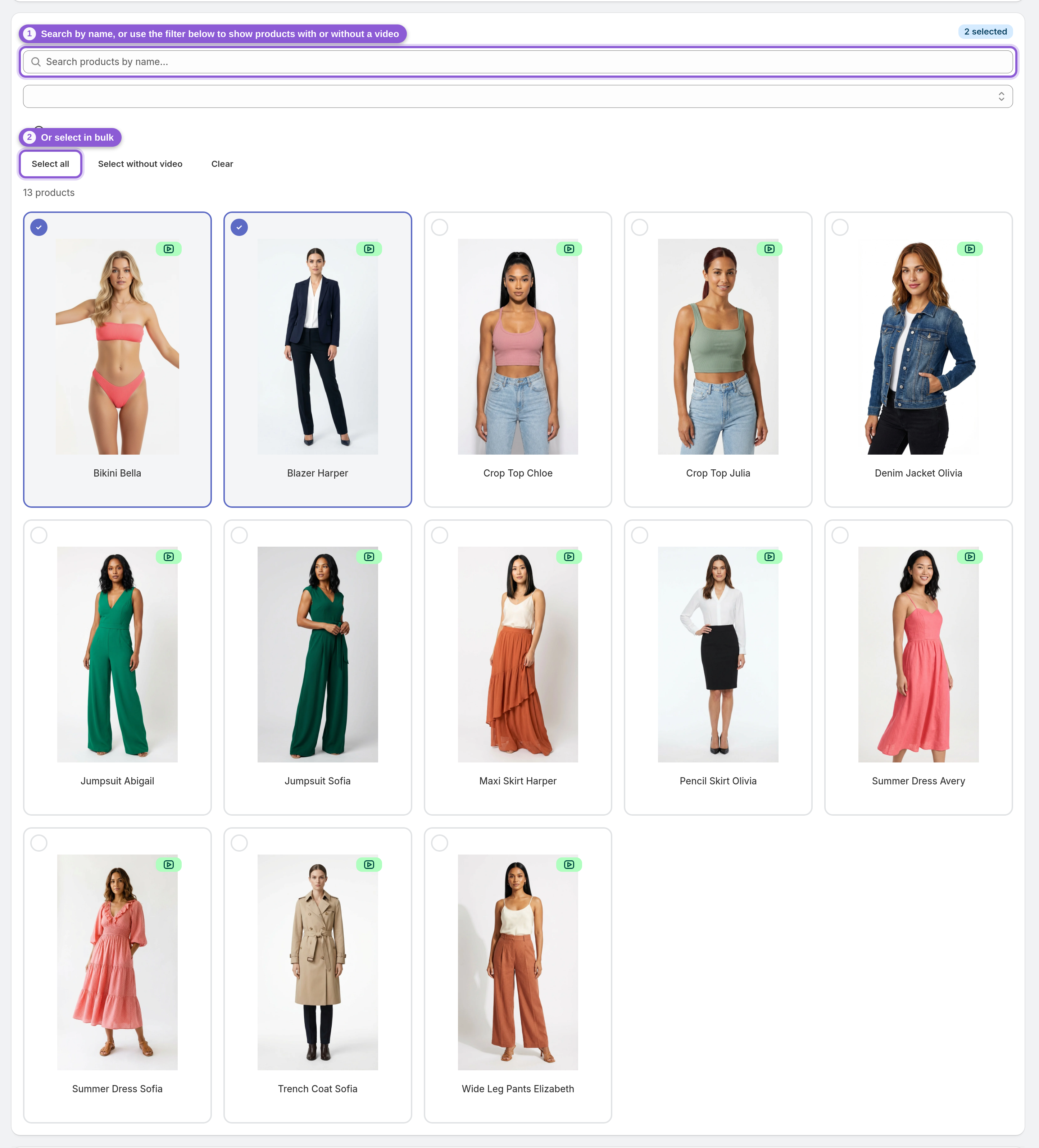
3 Generate your AI product videos
Click generate and Mia queues the work in the background — each product uses one credit and produces several video options (takes from different AI video models) so you can compare and keep the best one. Videos are generated in vertical 9:16, the native format for Reels, TikTok and Shorts. The generation queue shows live progress (processing, queued, completed), so you can keep working while it runs — no video editing experience needed.

4 Compare the options and pick your favorite
When generation finishes, open a video to preview it in the built-in player, or flip through all the generated options side by side. Because every credit produces multiple takes, you're choosing the best result rather than settling for a single roll of the dice. Mia also reviews the finished set and marks the strongest take with a Recommended badge. If a take fails, a Retry button generates a new version at no extra cost — and if none of the takes pass Mia's quality check, you can regenerate the whole set once for free.
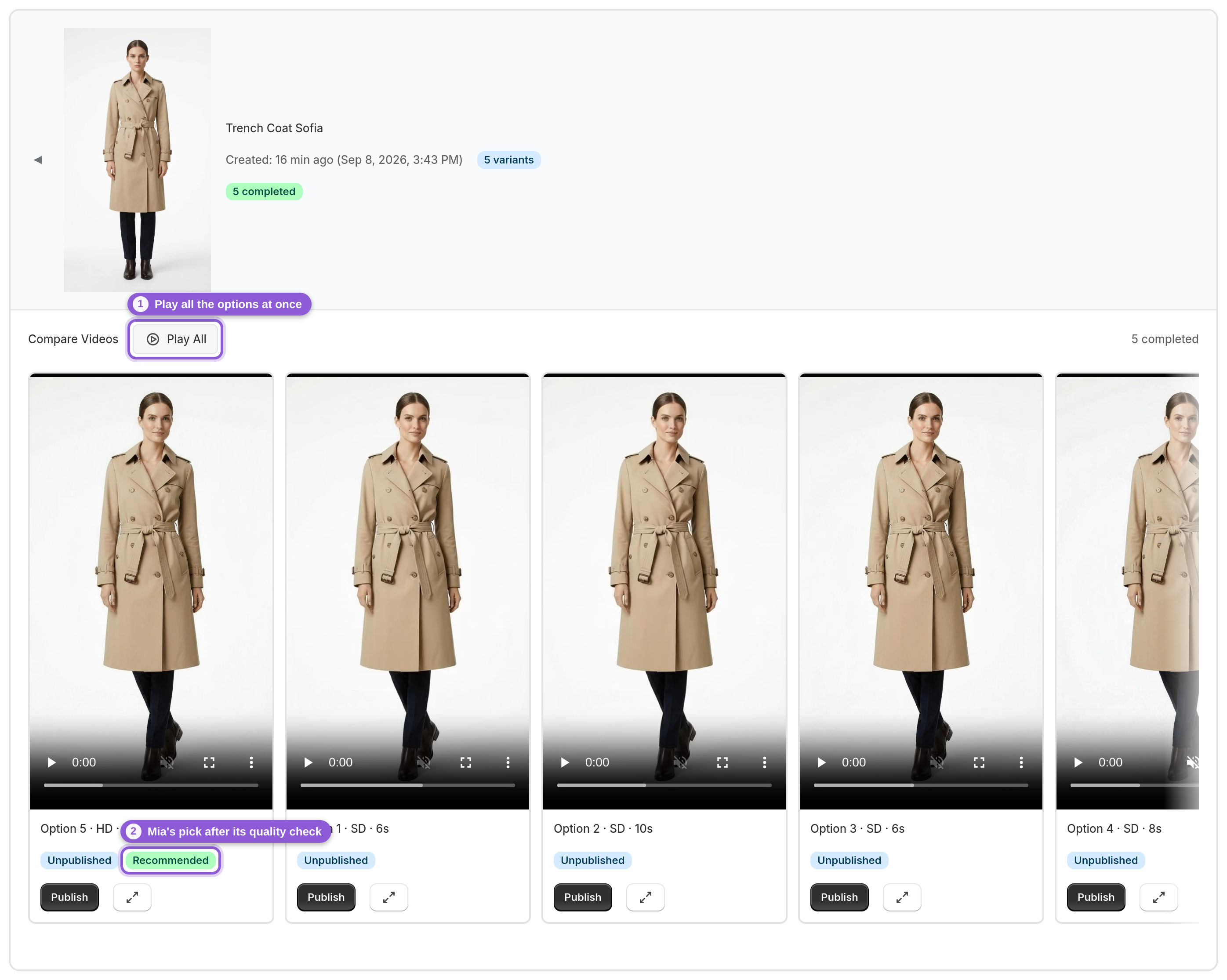
5 Publish to your store or download and share
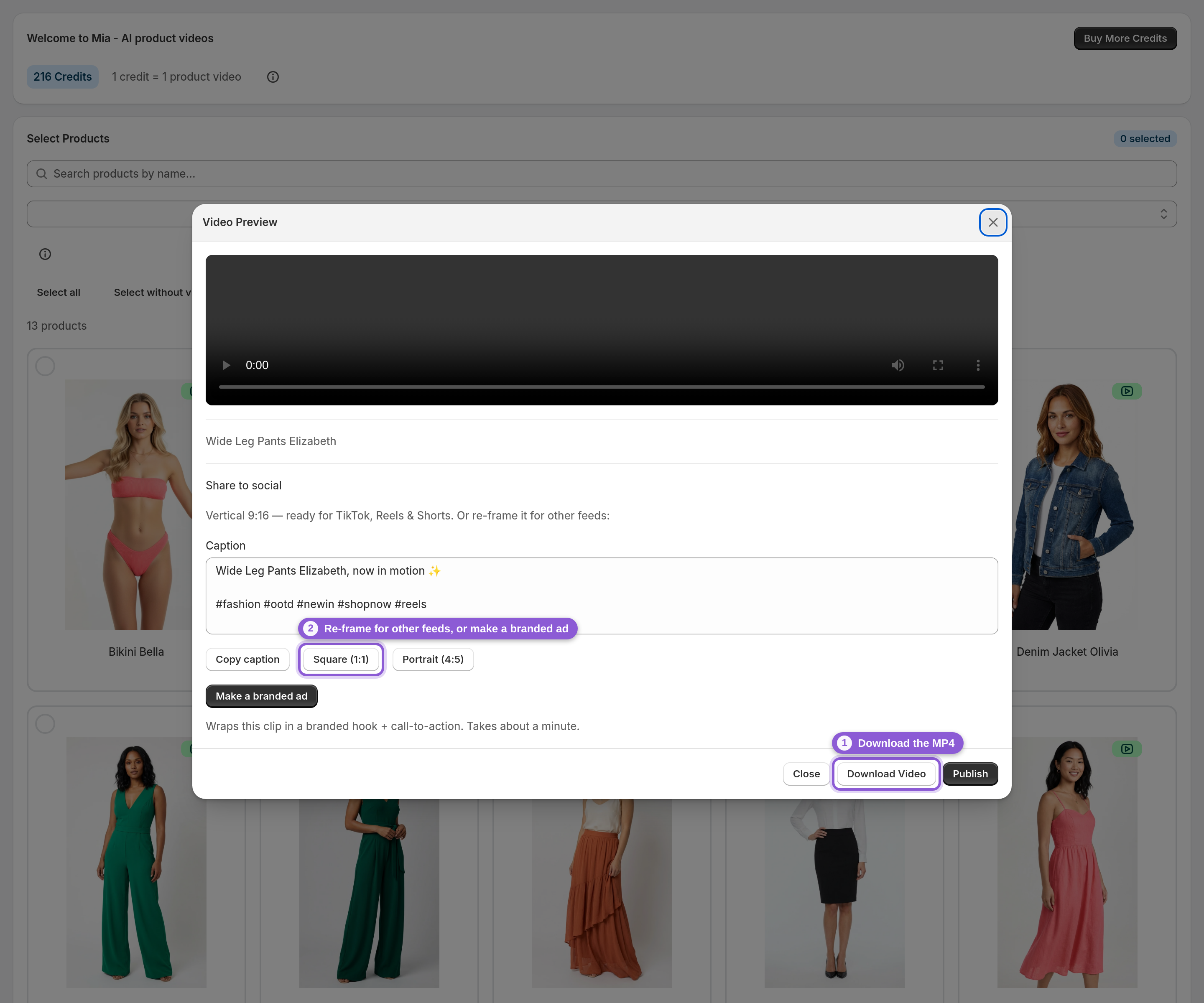
When you're happy with a video, publish it and Mia attaches it to the product's media gallery in Shopify — placed first, so it's the lead visual shoppers see on your product page. Or download the MP4 to post on social channels or upload into ad campaigns. For social, you can also re-frame the vertical video to Square (1:1) or Portrait (4:5).
Frequently asked questions
How do I turn product photos into a video on Shopify?
Install an AI product video generator like Mia. It imports your Shopify catalog automatically — you then search or browse your products, select the ones you want, and click generate. Mia builds several video options per product from your existing photos in the background, and you publish the best one to your store or download it for social and ads.
Do I need any video editing skills to use Mia?
No. Mia is designed so you don't need any filming or video editing experience. You select your products and generate — the AI handles the motion, pacing and framing, and gives you multiple finished options to choose from.
Can I use the videos for TikTok, Reels and ads?
Yes. Videos are generated in vertical 9:16, the native format for TikTok, Reels and Shorts, and you can download them as MP4 files. You can also re-frame a video to Square (1:1) or Portrait (4:5) for other placements.
What happens to my videos when my products change?
Published videos stay on your product pages until you replace them. When a product changes enough that you want fresh content, select it and generate again — you'll get a new set of video options to publish. Product data itself stays in sync with Shopify automatically.
How long does it take to generate an AI product video?
Generation runs in the background, so it isn't instant, but you don't have to wait on the page. The dashboard's generation queue shows live status — queued, processing and completed — so you can keep working while videos render.
How much does it cost to generate videos?
Each product video generation uses one credit, and one credit produces several video options to compare. Retrying a failed take never spends a credit, and if no take passes the quality check you can regenerate the whole set once for free. If every take fails, the credit is refunded automatically. New stores get free welcome credits to start, and you can buy credit packs in the app when you need more.