
Shopify Product Video Not Showing on Product Page? Published Video Not Showing or Not Autoplaying
You published a video with Mia AI Product Videos, but the product page doesn't show it, or it shows it and won't play on its own. The usual first move is to look for a Mia widget, an app block or an autoplay setting. Mia has none of these. When you publish, Mia adds the video to the product in Shopify as native product media and moves it to the first media position. From there, your theme's own product-media player decides how the video is shown and whether it plays. The steps below show where to check, in order.
Don't have Mia AI Product Videos yet? Install it from the Shopify App Store →
1 Confirm the video is published in Mia
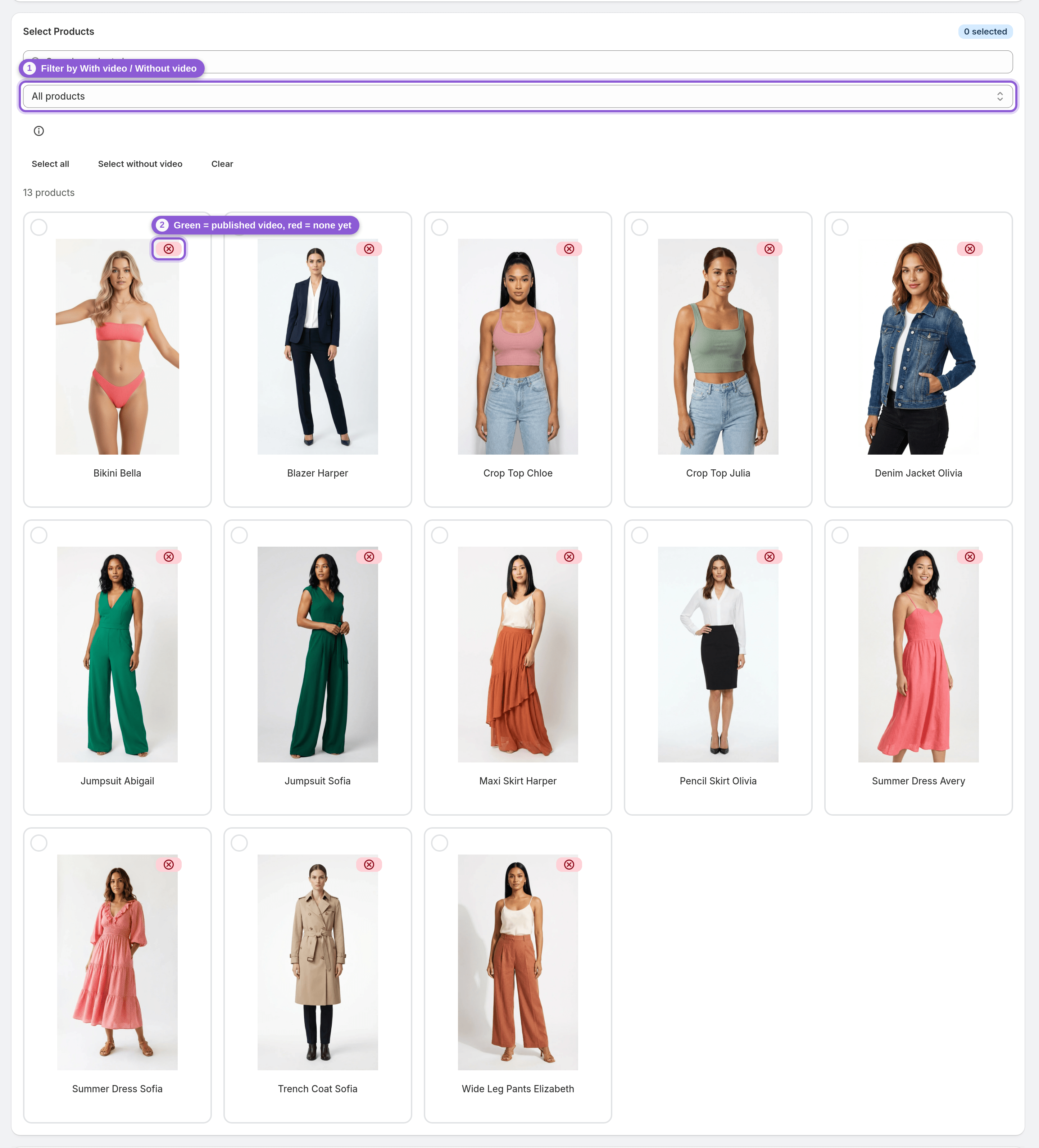
Start in the Mia dashboard. Each product in the grid has a badge that shows whether it has a published video, and the With video / Without video filter narrows the grid to products that do or don't have one.
If the product's badge is red (hover text "No published video"), the video hasn't reached Shopify yet. Open the product's takes and publish the one you want. Publishing is one click.
2 Check the product's media in your Shopify admin
Open the product in your Shopify admin and look at its media. A published Mia video sits there as a normal product video, and Mia places it first.
Mia only adds or removes the video media. It does not change your product title, description, prices or images. If the video is in the media list but no longer first, it was most likely reordered after publishing. Drag it back to the top if you want it to lead.
3 Don't look for an app block or widget
Mia has no storefront widget, video player, theme app block or embed. You won't find a Mia section to add in the theme editor, and you don't need one.
The video plays in the product-media gallery your theme already uses for photos and videos. If that gallery shows the product's media, it can show the Mia video.
4 Check the live product page
View the real storefront page, not just the admin. Make sure the product is active and available on your Online Store sales channel. Then reload the page in a private or incognito window, so you aren't looking at a cached version.
Check the gallery thumbnails or slider as well as the main image. Some themes show the first media item large and the rest as thumbnails or in a carousel.
5 Understand how your theme shows product media
How the video looks on the page depends on your theme. Common reasons a video seems to be missing:
• The theme's gallery layout only shows certain media in the main spot.
• Selecting a variant jumps the gallery to that variant's image, so the video is no longer in view.
• On mobile, the theme uses a different gallery layout than on desktop.
These are theme behaviours, not Mia settings. Your theme's documentation or developer can tell you how its gallery handles product videos.
6 Set autoplay and looping in your theme, if it offers them
Mia has no autoplay control. Whether a product video starts on its own, loops or waits for a tap is decided by your theme's media player. Some themes have video options in the theme editor. Others always wait for the shopper to press play.
Mia videos are silent: no music, voice-over or text overlays. So there is no sound to turn on or off.
7 Swap or unpublish the video
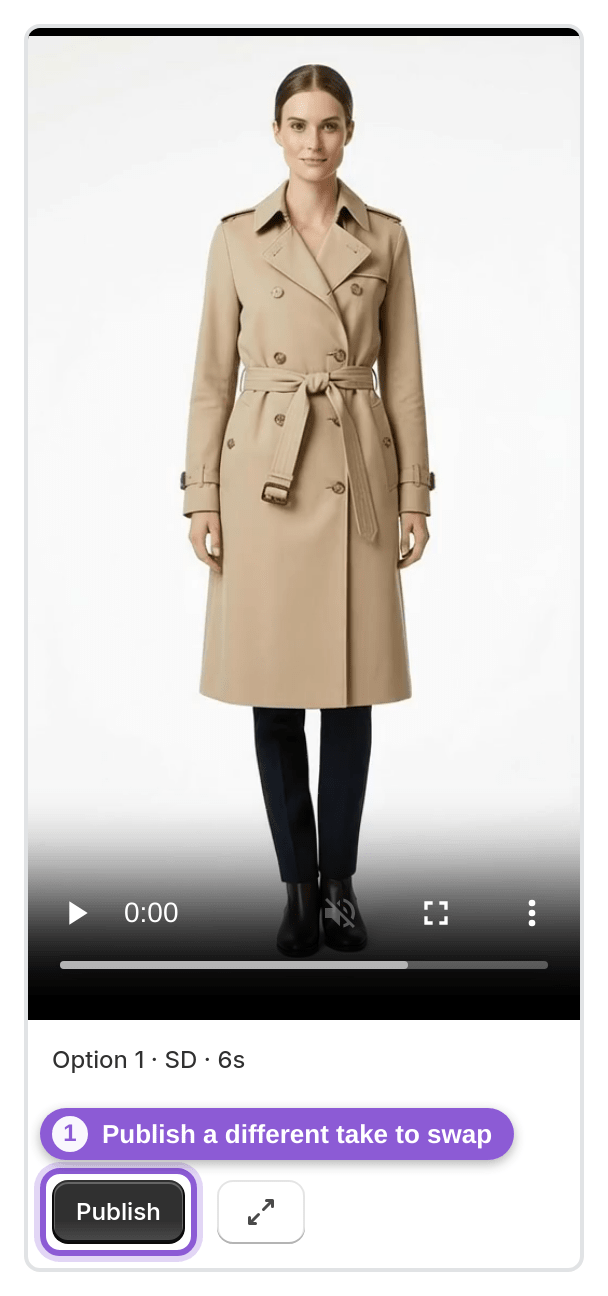
If the wrong take is live, or you'd rather show a photo first again, you can change it any time. Unpublish removes the video from the product's media in Shopify. You can also publish a different take from the same set instead.
Your product photos and details stay as they were in both cases. Only the video media is added or removed.
Frequently asked questions
Why is my Mia product video not autoplaying on my product page?
Mia has no autoplay setting. The video is published as native Shopify product media, and your theme's own media player decides whether it autoplays, loops or waits for a tap. Check your theme's settings or documentation for video playback options.
Do I need to add a Mia app block or widget to my theme?
No. Mia has no storefront widget, app block or video player. Published videos appear in your theme's existing product-media gallery, the same place your product photos show.
Where does Mia put the video on my product page?
Mia adds it to the product's media in Shopify and moves it to the first media position, so it becomes the lead media item. How that first item is shown on the page depends on your theme's gallery layout.
Will publishing a video change my product photos or description?
No. Publishing only adds the video media, and unpublishing only removes it. Mia does not change product titles, descriptions, prices or images.
The video is in my Shopify admin but not first anymore. Why?
Mia places the video first when it publishes it. If the media order was changed afterwards, for example by reordering the product's media in Shopify, the video stays where it was moved. Drag it back to the top if you want it to lead.
How do I remove or replace the video on a product page?
Use Unpublish in Mia to remove the video from the product's media, or publish a different take from the same set to swap it. You can do this any time.