
How to Generate AI Product Videos on Shopify with Mia
Mia turns the product photos you already have into short marketing videos — no filming, no editing, no studio. The whole flow lives on one dashboard: pick the products you want, click Generate Videos, and Mia works in the background and drops a set of options into the queue for you to compare. Each video comes out in vertical 9:16, the native format for Reels, TikTok and Shorts. Here's the full flow, top to bottom.
Don't have Mia AI Product Videos yet? Install it from the Shopify App Store →
1 Find the products you want videos for
Your catalog appears on the dashboard as a grid under Select Products. Use Search products by name... to jump to a specific item, or the Filter dropdown to narrow the grid to All products, Without video, or With video — handy for finding the products that don't have a video yet. Mia works from your product images, so items with clear, high-quality photos give the best results.
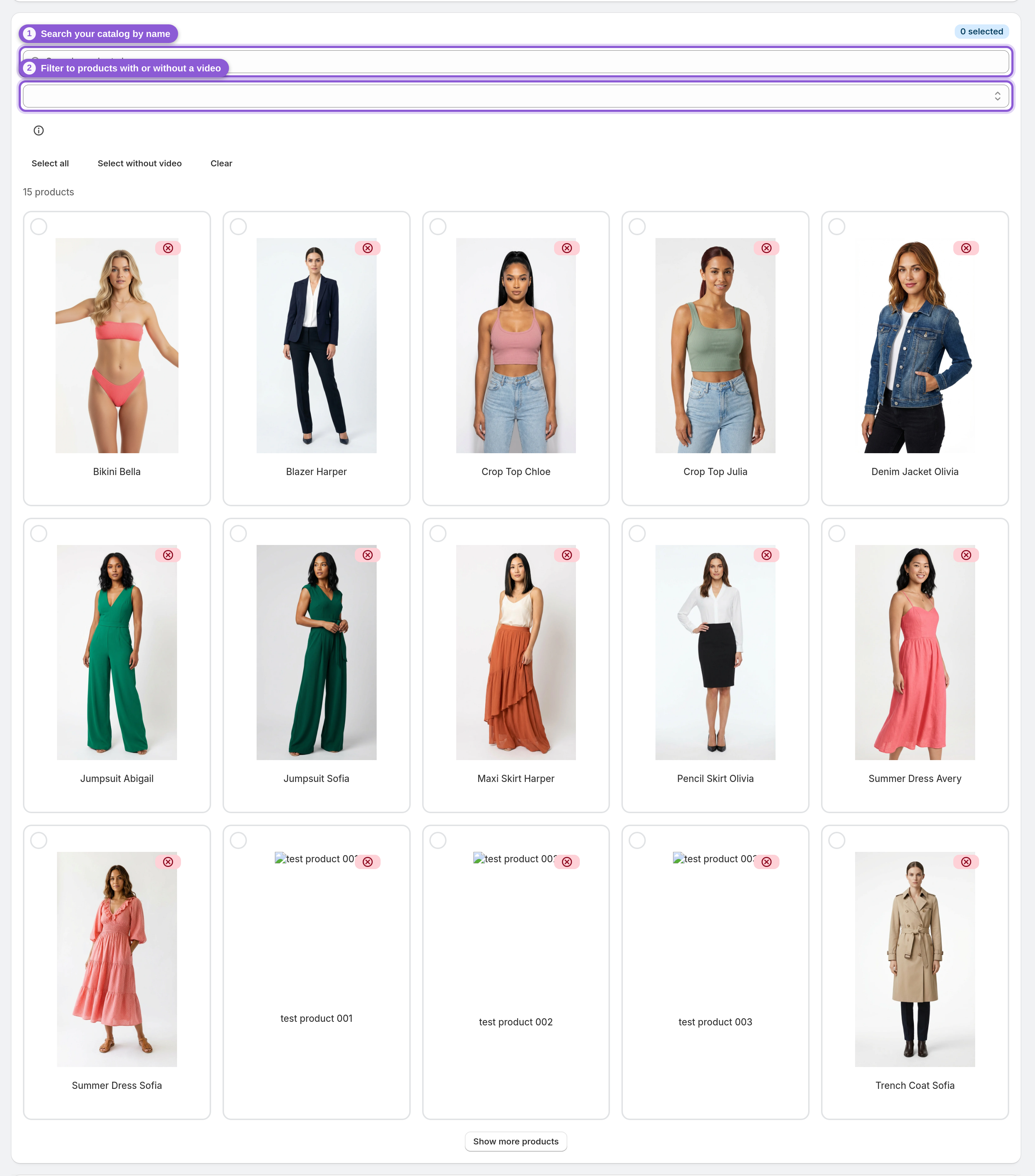
2 Select one or more products
Click any product card to select it — a checkmark appears and the selected count updates. Want to move in bulk? Use Select all to grab everything currently shown, Select without video to target only the products that don't have a published video yet, or Clear to start over. A bestseller or a fresh launch is a great first pick.
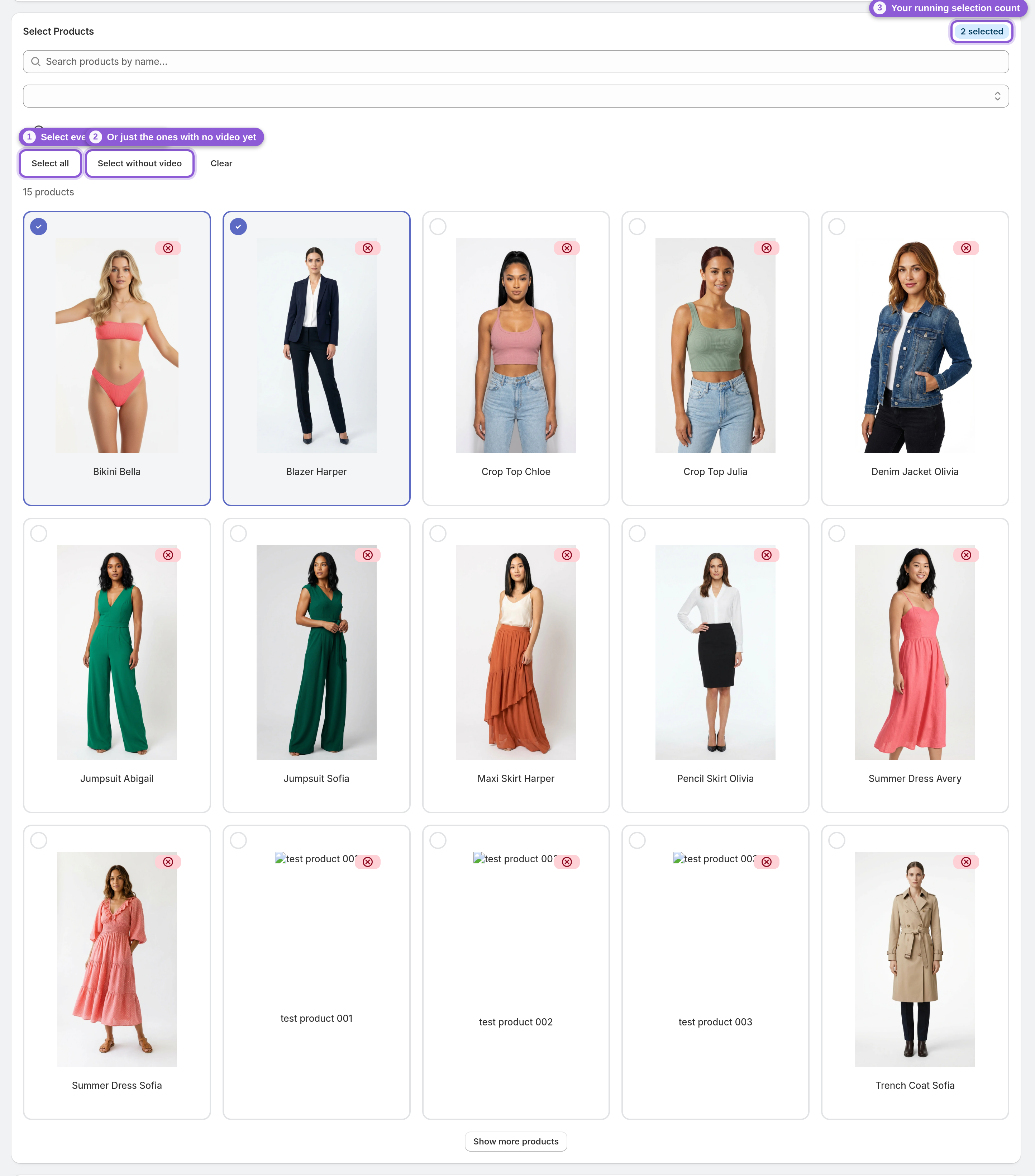
3 Check the credit cost
Above the generate button, Mia shows exactly what you're about to spend — for example, Will use 2 credits to generate 2 videos. The rule is simple: 1 credit = 1 product video, one video per selected product. If you don't have enough credits, that line switches to a Not enough credits message and the button becomes a shortcut to buy more, so you never generate something you can't afford.

4 Generate your videos
Hit Generate Videos. Mia queues the work in the background — you'll see a Videos queued for generation! confirmation and the new job appears under Generation Queue / History. You don't have to wait around: generation runs server-side and a video is typically ready in due course, though not instantly. The queue header keeps a live tally — processing • queued • completed today — and refreshes on its own, so you can keep browsing while videos render.
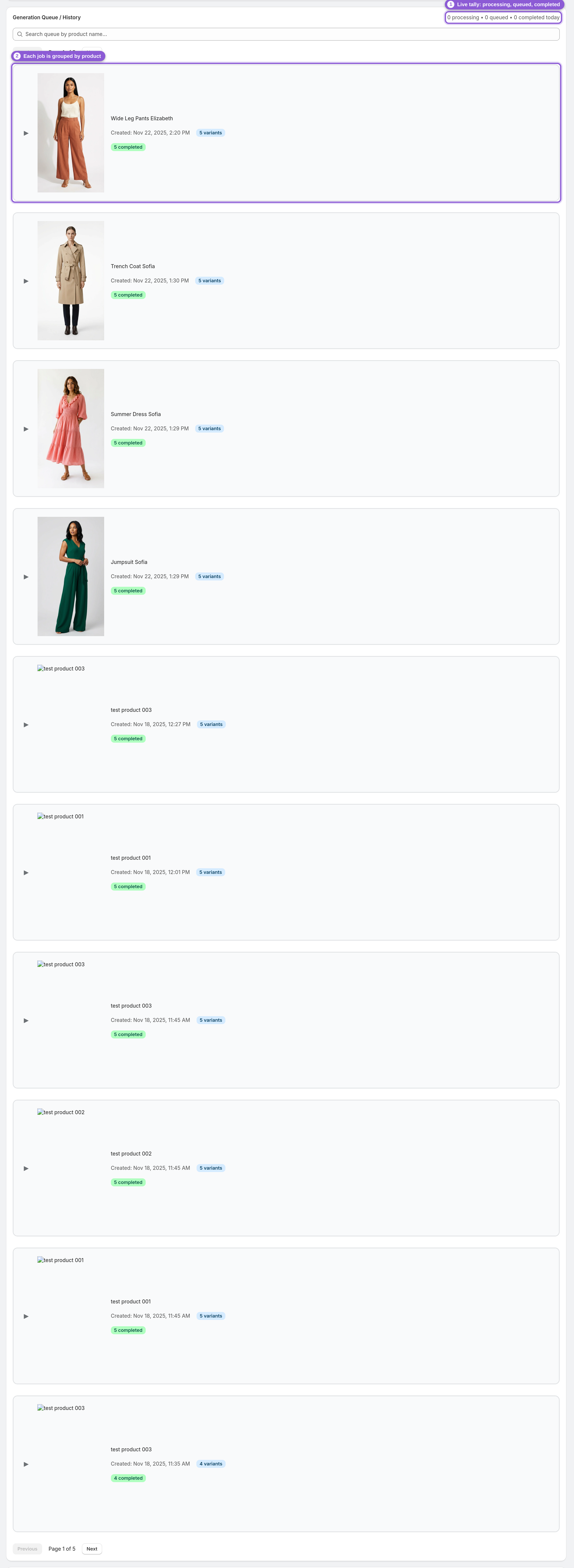
5 Compare the options and pick your favorite
Every generation produces several options (several different AI takes) so you're choosing the best result instead of settling for one roll of the dice. Open a completed job in the queue and the Compare Videos row lets you preview them side by side — press Play All to play the whole set at once. Each option is labelled with its quality and length (for example Option 5 · HD · 10s). Right after the set finishes you'll briefly see Checking the takes… while Mia reviews them; it then marks the take it thinks works best with a Recommended badge — you still choose which one to publish.
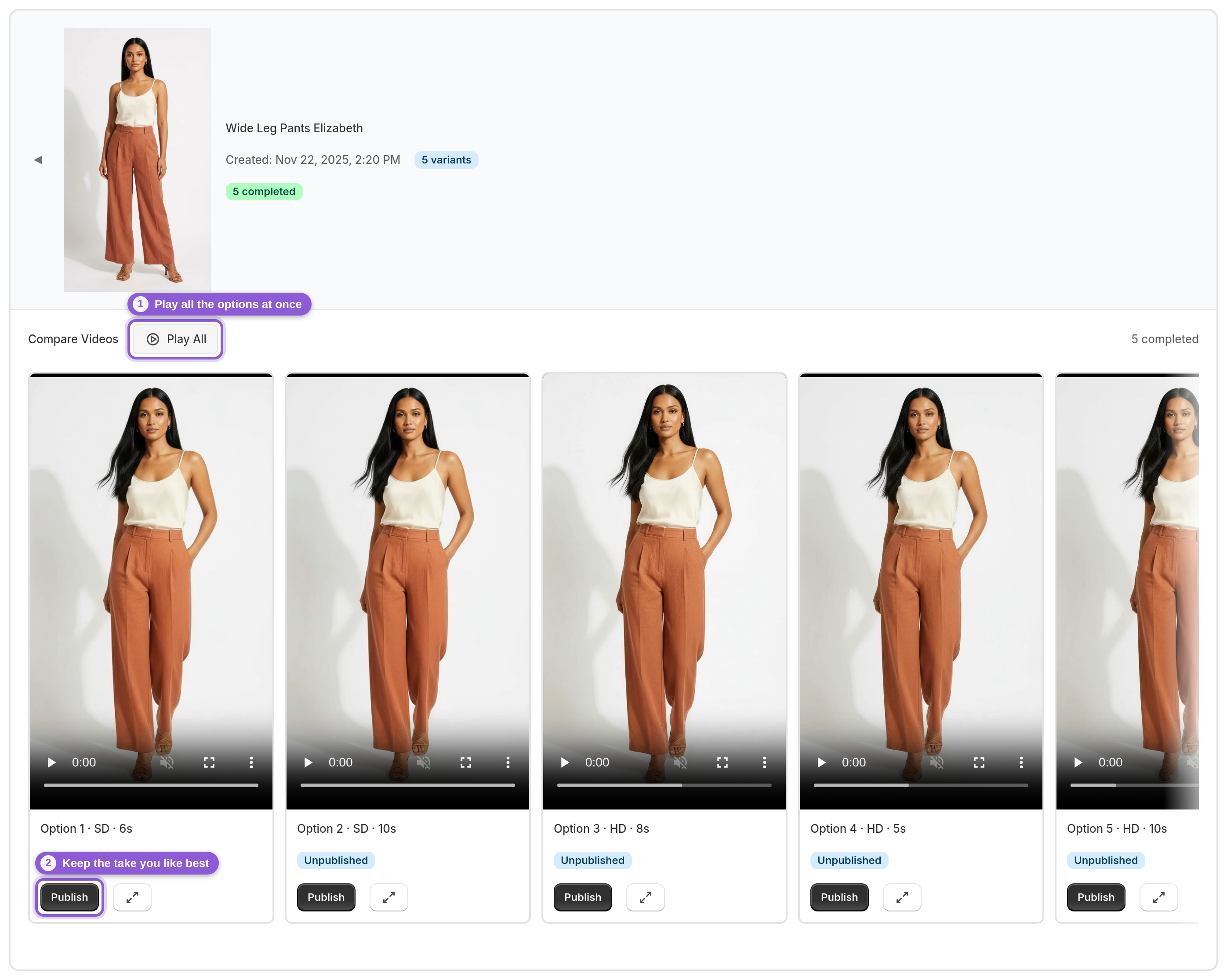
6 Retry anything that didn't land
If an option comes back marked failed, a Retry button generates a fresh version at no extra cost. Videos usually fail when the source image trips a video model's content filter (swimwear or underwear shots, or a false celebrity match); retrying, or simply using one of the other takes, normally gets you a usable video. If Mia's quality check finds that none of the takes passed, the job shows a banner — None of these takes passed our quality check. You can retry this product once for free. — and Retry for free regenerates the whole set without spending a credit. Once you're happy with a take, you're ready to publish it to your store or download it for social.
Frequently asked questions
How do I make a video from a product photo on Shopify?
Install Mia, open the dashboard, and your Shopify catalog loads as a product grid. Select one or more products, check the credit cost, and click Generate Videos. Mia builds a set of video options per product from your existing photos — in the background — and you compare them in the Generation Queue.
How many videos do I get per product?
Each generation produces several options (several different takes) for the one product, and they show up together in the queue under Compare Videos. You preview them, then keep the one you want — so a single credit gives you choices, not just one attempt.
How long does it take to generate a product video?
Generation runs in the background and isn't instant — a set can take a while to finish. The Generation Queue shows live status — processing, queued and completed today — so you can keep working while videos render.
Can I generate videos for lots of products at once?
Yes. Use Select all to select every product currently shown, or Select without video to target just the ones that still need a video, then generate them together. Each selected product uses one credit and produces its own set of options.
What video format do the videos come in?
Videos are generated in vertical 9:16 — the native format for Reels, TikTok and Shorts. You can re-frame a finished video to Square (1:1) or Portrait (4:5) later when you download it for other placements.
A video came back as "failed" — what do I do?
Click Retry to generate a fresh version — it doesn't cost a credit. Videos usually fail because the source image trips a model's moderation filter (swimwear/underwear, or a false celebrity match). Trying again, or using one of the other takes, normally gets you a usable video.
What happens if none of the takes are good?
Mia reviews every finished set and marks the strongest take as Recommended. If no take passes that check, the job shows a "None of these takes passed our quality check" banner with a Retry for free button — click it and Mia regenerates the whole set once, without charging a credit.
Do I need any video editing skills?
No. You select products and click generate — Mia handles the motion, pacing and framing and hands you finished options to choose from. There's nothing to edit.
Which products make the best videos?
Products with clear, well-lit photos. Mia first builds a clean studio frame of a model wearing your product from the photos you already have, then animates that frame — so the sharper and more complete the source photos, the better the result.