
How to Publish AI Product Videos to Your Shopify Product Pages
Once Mia has generated a set of videos, publishing the winner to your store takes a single click — no theme editing, no re-uploading. You preview the options, Publish the one you like, and Mia adds it to that product's media in Shopify so shoppers see it on the product page. Changed your mind? Unpublish just as easily. Here's how it works.
Don't have Mia AI Product Videos yet? Install it from the Shopify App Store →
1 Open a completed job in the queue
Every generation lands under Generation Queue / History, grouped by product with a completed badge once the takes are ready. Click a group to expand it and reveal the Compare Videos row, where all of that product's options sit side by side. Use Play All to preview them, then decide which one deserves the product page.
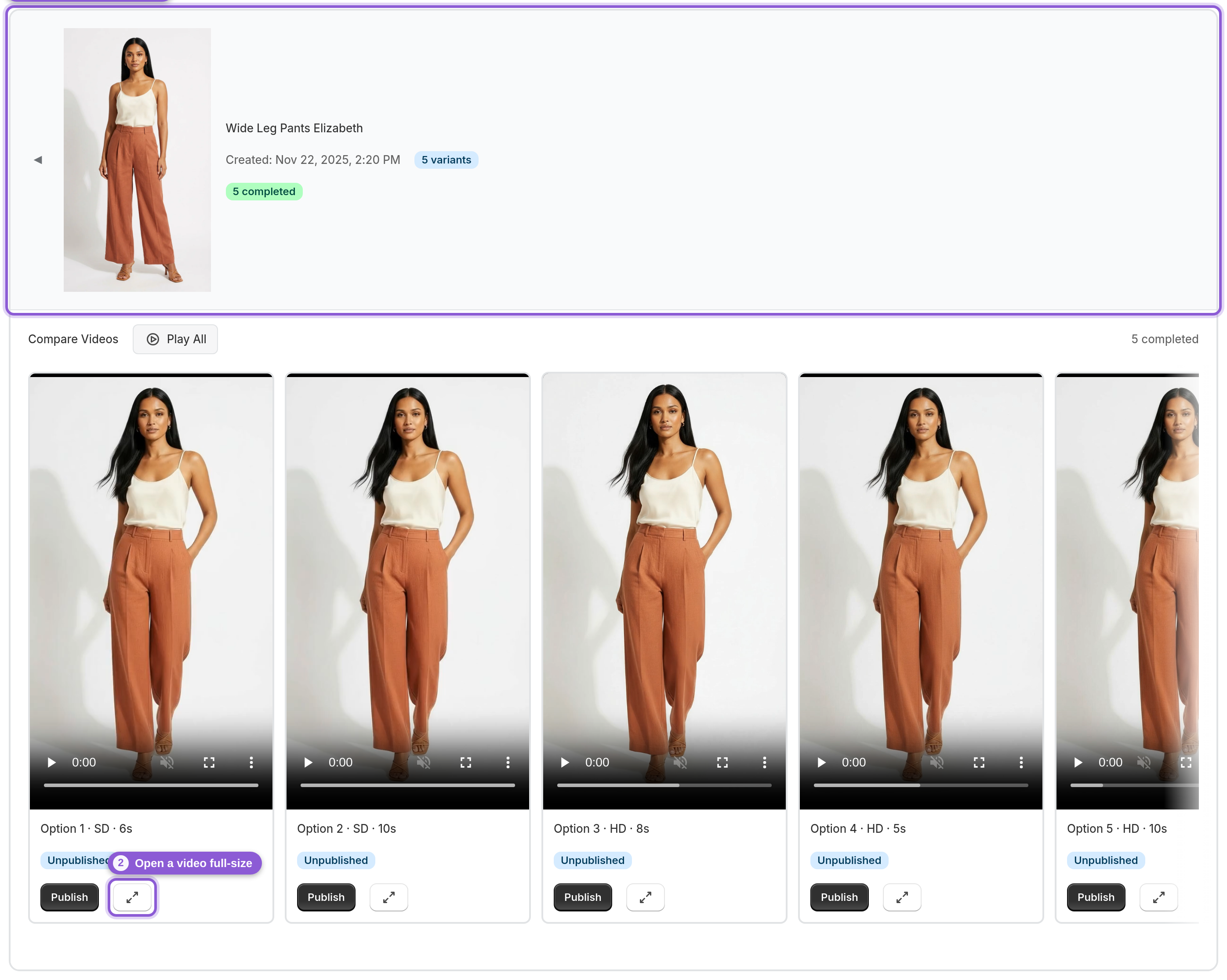
2 Publish the option you like
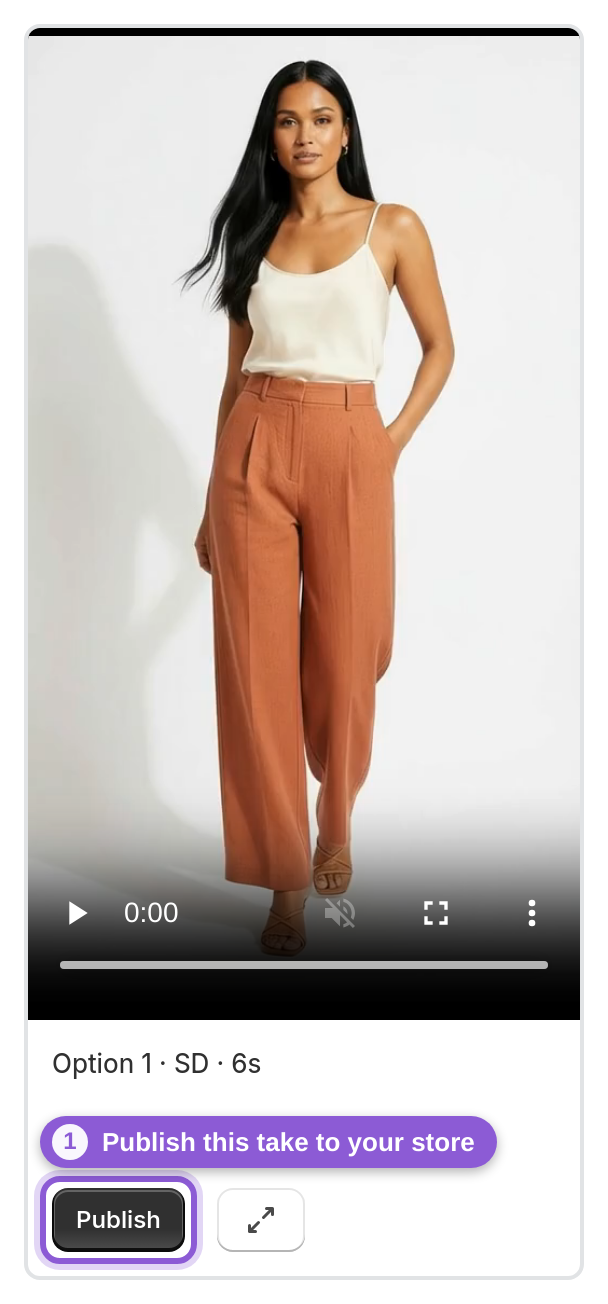
Each option card shows an Unpublished badge — plus a Recommended badge on the best take that passes Mia's AI quality check — and a Publish button. Click Publish on your favorite and Mia attaches that video to the product in your store — you'll get a Video published successfully confirmation and the badge flips to Published. Only one take needs to go live; the rest stay in the queue in case you want to swap later.
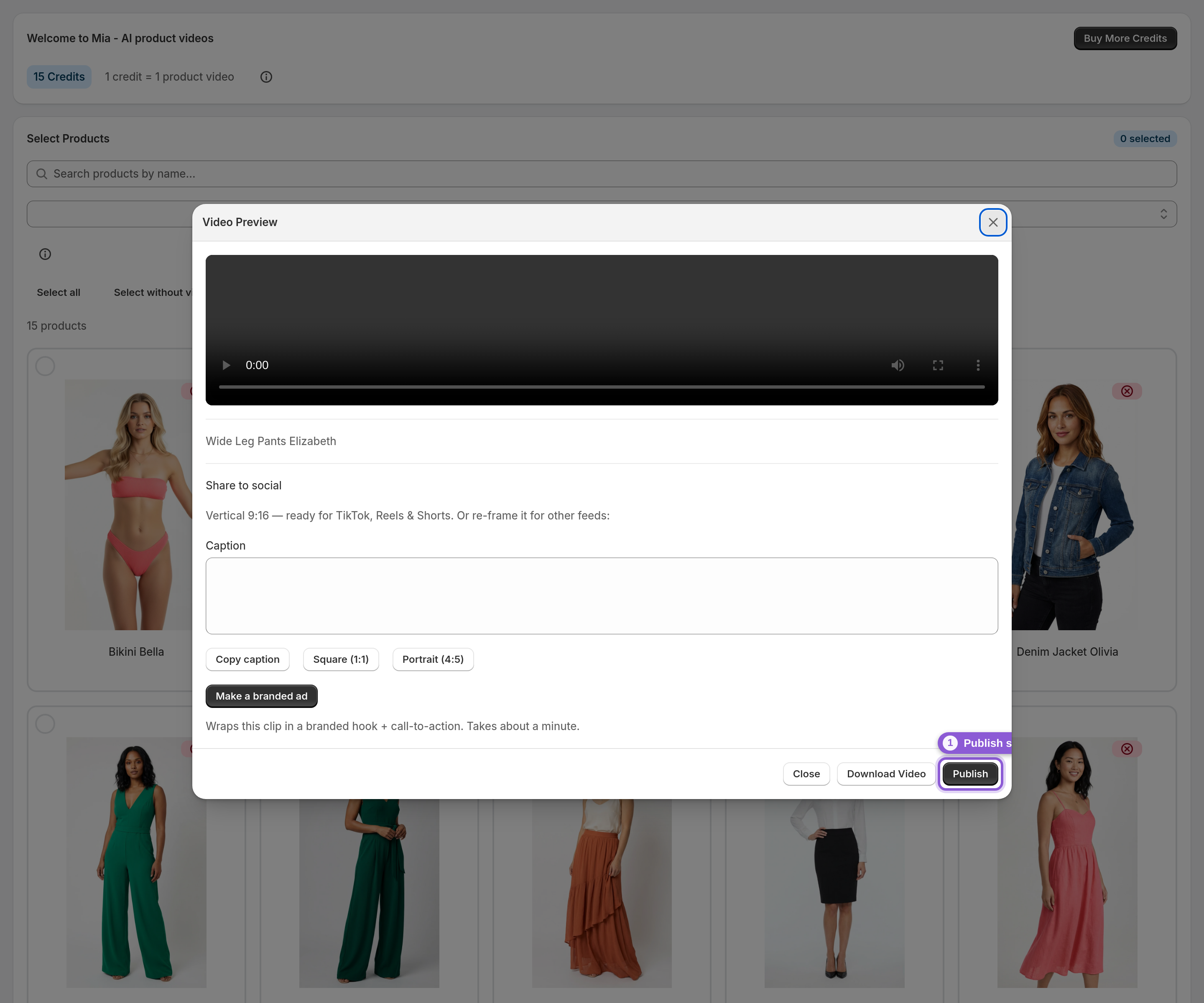
3 Publish (or preview first) from the player
Want a closer look before committing? Open a video to preview it full-size, then publish straight from the player using the Publish button at the bottom of the window. The same window also has a Download Video button if you'd rather grab the MP4, and Close to step back to the queue. Publishing from here works exactly like publishing from the card.
4 Unpublish or swap a video anytime
Published something and want it gone — or want a different take up instead? Open the same job and click Unpublish on the live video (a Video unpublished successfully toast confirms it), then Publish whichever option you prefer. Because every generation keeps all its options, swapping the video on a product page is just two clicks.
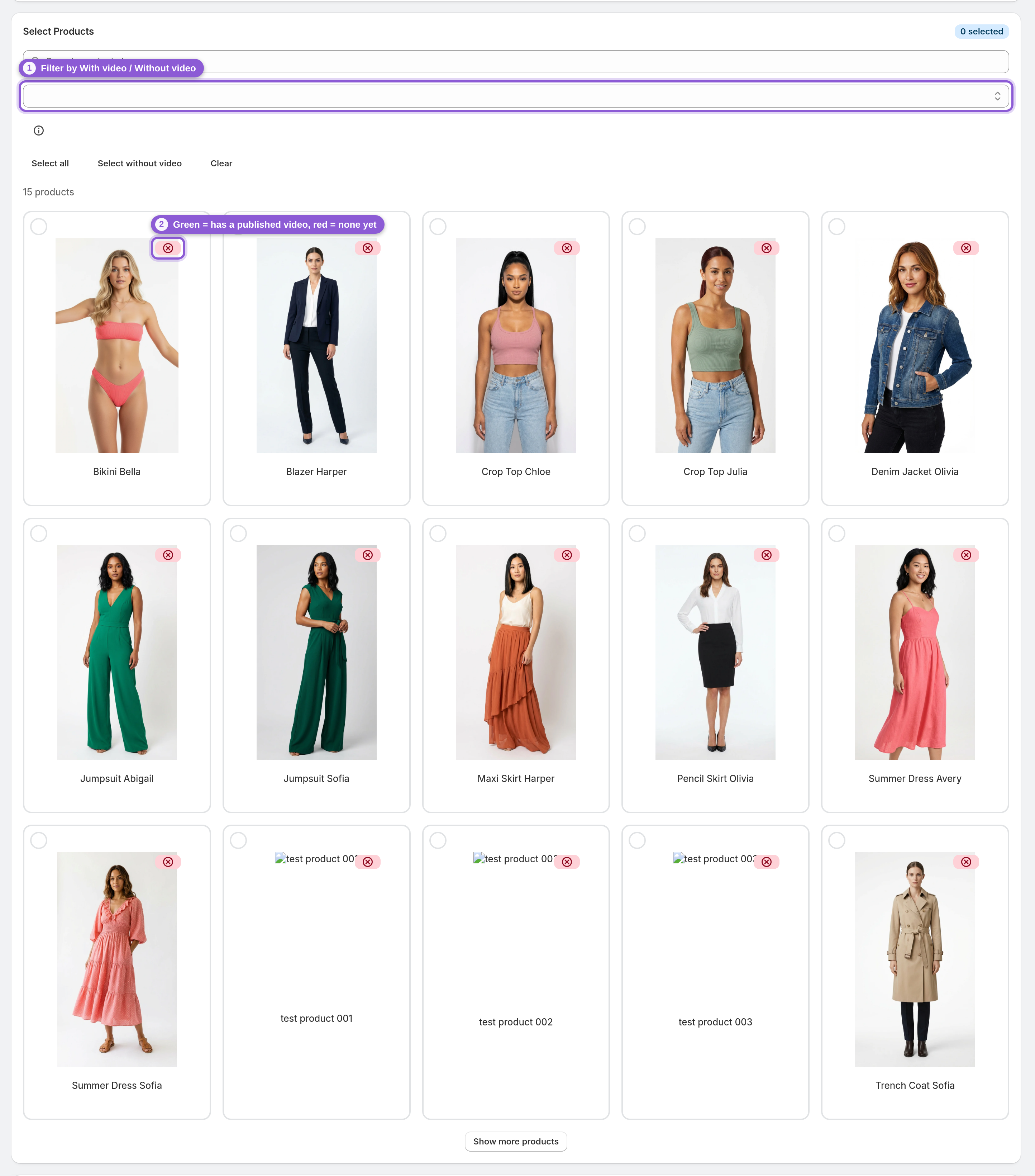
5 See which products already have a video
Back in the Select Products grid, each card carries a small badge in its top-right corner showing whether it already has a published video — green means Has published video, red means No published video (hover the badge to see the label). To review only your published products, set the Filter dropdown to With video; to find the gaps, choose Without video. It's the quickest way to see your coverage across the whole catalog at a glance.
Frequently asked questions
How do I add a video to a Shopify product page?
Generate videos for the product in Mia, open the completed job in the Generation Queue, and click Publish on the option you want. Mia adds that video to the product's media in your Shopify store, so it appears on the product page — no theme editing or manual uploading.
Can I remove a video after publishing it?
Yes. Open the same job and click Unpublish on the live video; you'll get a confirmation and the badge returns to Unpublished. The video stays in your queue, so you can republish it or pick a different option later.
How do I swap the published video for a different take?
Unpublish the current one, then Publish the option you prefer. Every generation keeps all of its options in the queue, so switching which video is on the product page takes just two clicks.
How do I know which products already have a published video?
Each product card in the Select Products grid shows a small green or red badge in its corner; hover it to read "Has published video" or "No published video". Use the Filter dropdown and choose With video or Without video to list one group or the other.
Do I have to publish every option Mia generates?
No. A generation gives you several options to compare, but you only publish the one you want on the product page. The others remain available in the queue.
Will publishing a video change anything else on my product?
Publishing adds the video to that product's media in Shopify. Your product title, description, price and images are not changed, though the video is placed first in the product's media, ahead of your images — and unpublishing removes the video again whenever you like.